

























In today’s fast-paced digital age, staying up-to-date with the latest technology can seem like a daunting task, especially when it comes to home entertainment. For those who own an older television, the idea of accessing modern streaming services may feel out of reach. However, a streaming stick offers a simple and cost-effective solution to transform your traditional TV into a smart entertainment hub. This article will guide you through the process of using a streaming stick to upgrade your old TV, providing step-by-step instructions and practical tips to enhance your viewing experience without the need for a complete system overhaul. Whether you’re a tech-savvy individual or someone new to the world of streaming, this guide will equip you with the knowledge to seamlessly integrate this technology into your home setup.
Choosing the Right Streaming Stick for Your Needs
When it comes to transforming your old TV into a smart entertainment hub, selecting the ideal streaming stick is crucial. With numerous options available, it’s essential to consider your specific needs and preferences. Here are a few factors to keep in mind:
- Compatibility: Ensure the streaming stick you choose is compatible with your TV’s HDMI ports and supports your preferred streaming services.
- Performance: Look for a device that offers fast processing speeds and minimal buffering, particularly if you plan to stream high-definition or 4K content.
- User Interface: A user-friendly interface can significantly enhance your viewing experience. Consider devices with intuitive remote controls and easy navigation.
- Additional Features: Some streaming sticks come with extra features like voice control, gaming capabilities, or integration with smart home devices. Evaluate if these features align with your needs.
- Price: Determine your budget and compare the cost of different options to find the best value for your investment.
By taking these factors into account, you can find a streaming stick that not only upgrades your old TV but also caters to your entertainment preferences seamlessly.
Setting Up Your Streaming Stick for Optimal Performance
To ensure your streaming stick delivers the best possible performance, start by finding the perfect spot for it. Avoid placing it behind the TV or in areas with poor ventilation. A location with minimal obstructions will allow the device to receive a stronger Wi-Fi signal, reducing buffering and enhancing your viewing experience.
- Connect to a 5 GHz Wi-Fi network if available, as it often provides faster speeds and less interference than a 2.4 GHz network.
- Use an HDMI extender if needed, which can help position the streaming stick for better reception.
- Regularly update your device’s software to benefit from the latest features and security patches.
Consider adjusting the picture settings on your TV for the best visual output. Many streaming sticks offer options to calibrate the display, so take advantage of these settings to enhance image quality. Disable unnecessary background apps on the streaming device to free up resources and maintain smooth operation.
Exploring Essential Apps and Features on Your Streaming Stick
Once you’ve plugged in your streaming stick and connected it to your Wi-Fi, it’s time to dive into the world of apps and features that can transform your viewing experience. Streaming sticks come loaded with a variety of essential apps, offering a gateway to countless hours of entertainment. Here are some must-have apps and features you should explore:
- Netflix, Amazon Prime, and Hulu: Access a massive library of movies, TV shows, and exclusive content with these popular streaming services.
- Live TV Apps: With apps like Sling TV and YouTube TV, you can watch live sports, news, and your favorite TV channels without a cable subscription.
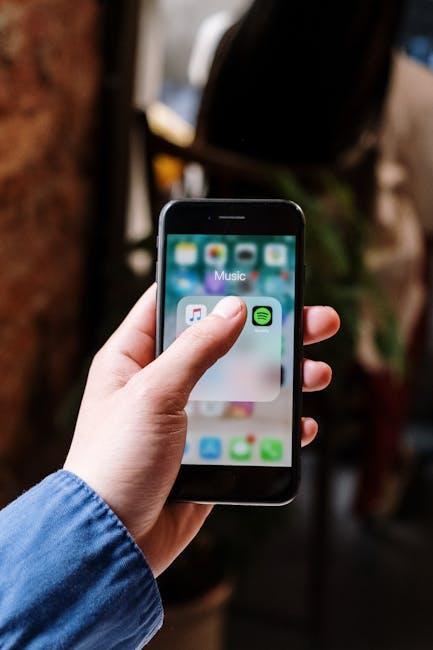
- Music Streaming: Enjoy your favorite tunes on the big screen with apps like Spotify and Pandora, transforming your TV into a home concert.
- Voice Control: Many streaming sticks come with voice-activated remotes. Use them to search for content, control playback, or even manage smart home devices.
- Screen Mirroring: Cast photos, videos, and apps from your smartphone or tablet directly onto your TV for a larger-than-life experience.
Take advantage of these apps and features to breathe new life into your old TV, making it a hub of modern entertainment and convenience.

Troubleshooting Common Issues with Streaming Sticks
Encountering issues with your streaming stick can be frustrating, but most problems have straightforward solutions. Here are some common issues and their fixes:
- Connectivity Problems: If your streaming stick struggles to connect to Wi-Fi, ensure that your router is within a reasonable distance. You might also want to check if other devices can connect to the network to rule out a router issue. Sometimes, simply restarting your router and the streaming stick can resolve connectivity hiccups.
- Lagging or Buffering: Lagging can be a result of a slow internet connection or too many devices using the bandwidth simultaneously. Try pausing other internet-heavy activities in your household. If the problem persists, consider upgrading your internet plan or using an Ethernet adapter for a more stable connection.
- Remote Control Issues: If the remote isn’t responding, check the batteries and ensure they’re properly installed. For remotes that connect via Bluetooth, re-pairing the remote with the streaming stick might be necessary. You can also use a mobile app as an alternative remote if available.
- Overheating: Streaming sticks can overheat if they’re used continuously for long periods. Ensure your device has proper ventilation and isn’t tucked behind other electronics that may trap heat. If overheating continues, unplug the device for a few minutes to let it cool down.
By addressing these common issues, you can enhance your viewing experience and ensure your streaming stick performs optimally.